Manav Sampada Attendance Lock: Step-by-Step Guide 2026
If you have ever been a nodal officer, headmaster, or DDO in any Uttar Pradesh government department, you already know what the third week of the month means. The attendance lock window opens on the 21st and closes on the 23rd. For three days, the priority above almost everything else becomes the same task: opening the Manav Sampada portal, reconciling the month’s attendance, and submitting the lock before the cut-off.
Miss the window, and the consequences are not theoretical. Salary disbursement for your unit gets held up. Pending leave entries from employees roll over awkwardly. Unresolved unauthorised absences linger into the next month and create reconciliation problems. The nodal officer gets escalation calls from the district office.
This guide is for anyone responsible for monthly attendance lock on Manav Sampada — primarily nodal officers and DDOs, but also for regular employees who want to understand what their reporting officers are doing behind the scenes and why it matters for their own salary slip.
What the Attendance Lock Actually Is
The attendance lock is the monthly checkpoint that converts raw daily attendance records into a final, processed monthly attendance report. Until the lock is submitted, the data sitting in the portal is provisional — it can still be edited, leave can be added or modified, and unauthorised absences can be recorded.
Once locked, the record becomes the authoritative monthly attendance for that establishment. It feeds directly into payroll, which is why salary disbursement is dependent on the lock being completed on time. The data also flows into the e-Service Book, where it forms part of each employee’s permanent service record.
This is the bridge between two systems: daily attendance on one side, monthly salary processing on the other. The lock is what makes that bridge load-bearing.
Who Performs the Attendance Lock
Regular employees on Manav Sampada — teachers, doctors, revenue staff — do not perform the attendance lock for their establishment. The lock is done by:
- The Nodal Officer assigned to that establishment, or
- The DDO (Drawing and Disbursing Officer) for that unit, or
- A delegated administrative user authorised by the establishment in-charge
In a typical Basic Education Department school, the headmaster or the designated senior teacher acts as the nodal authority for attendance lock. In a CHC or PHC, the medical superintendent or the administrative officer handles it. Larger offices may have a dedicated establishment clerk.
The point is that the role is fixed at the establishment level and mapped to specific user credentials in the eHRMS UP system. A regular employee who logs in will not see the attendance lock module at all on their dashboard — the option only appears for users with the appropriate role assignment.
When the Lock Window Opens — and Why Timing Is Tight
The standard attendance lock window in Manav Sampada is between the 21st and the 23rd of each month, with the lock function typically becoming available after 10 AM on the 21st.
That is technically a three-day window, but in practice, most establishments lose the first day to data preparation. Pending leave applications need to be cleared. Unauthorised absences need to be identified and recorded. Late arrivals or half-day absences need to be adjusted. None of this can wait until the 23rd at 4 PM, because if the portal hits a glitch or your internet drops or the server is slow due to other establishments doing the same thing — you are out of time.
The unwritten rule among experienced nodal officers is simple: aim for the morning of the 22nd. That gives you a buffer day if anything goes wrong, and you avoid the rush on the final day when server load is at its peak.
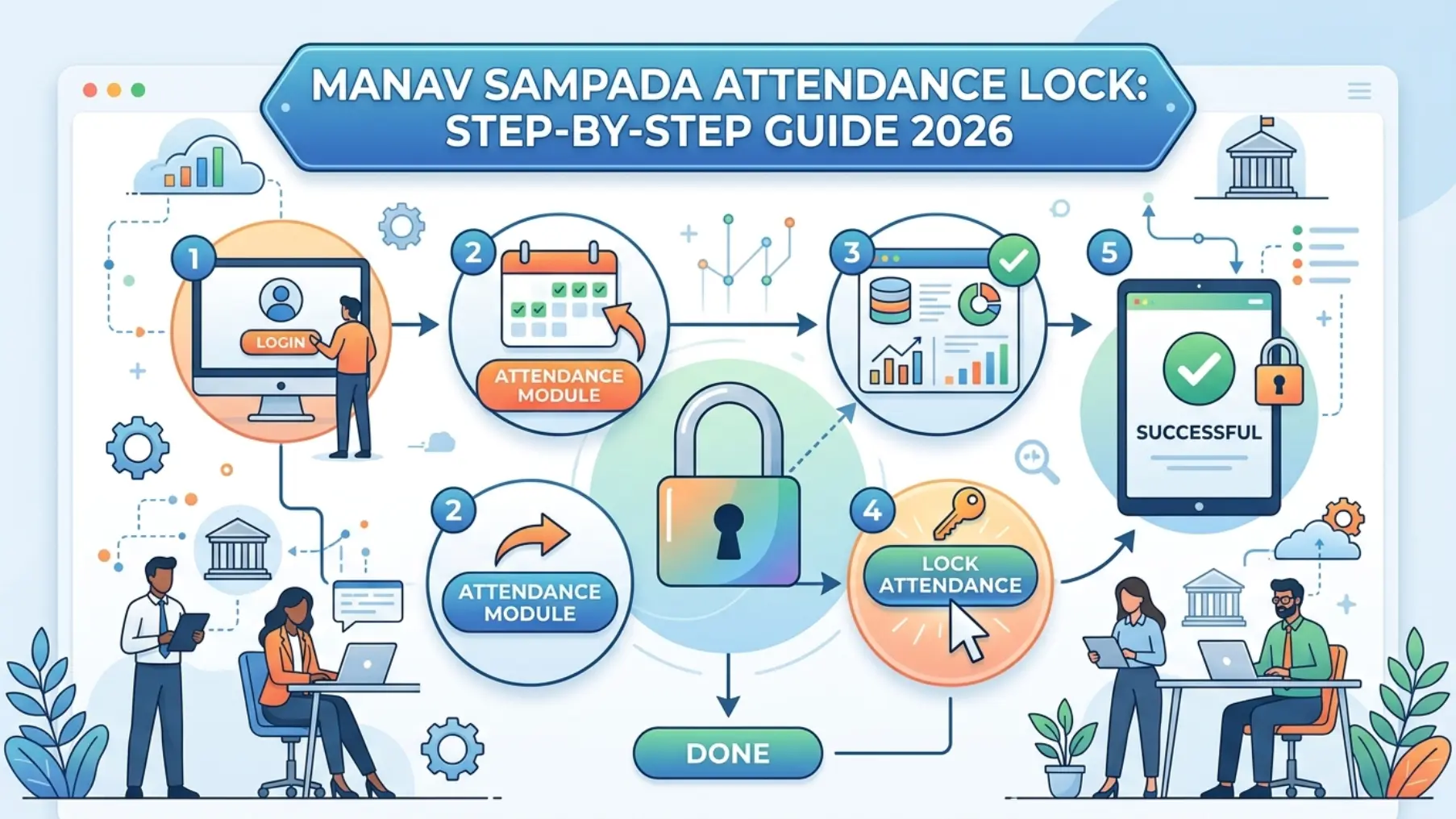
Step-by-Step: How to Lock Attendance on Manav Sampada
Step 1: Log In Through the Authorised Account
Open the Manav Sampada portal at ehrms.upsdc.gov.in. Sign in using your nodal officer credentials — not a regular employee account. Make sure the correct department code is selected from the dropdown (EDUBASIC for Basic Education, MEDHLTH for Medical and Health, and so on).
If you have multiple roles in the system — for example, you are both an employee and a nodal officer — make sure you are logging in with the nodal credentials. The dashboard layout will look different.
Step 2: Navigate to the Payroll → Attendance Module
From the main dashboard, go to the Payroll section. Within Payroll, locate the Attendance option. Click into it. You should see a sub-menu with options like Daily Attendance, Monthly Attendance Report, and Attendance Lock.
If you do not see the Attendance Lock option, two things might be happening: either it is before 10 AM on the 21st (the function has not opened yet), or your account does not have the lock role assigned. The second case requires contacting your district administrator.
Step 3: Extract Pending Leaves
Before locking, the system needs to be reconciled with all leave applications submitted by employees during the month. Click on Extract Pending Leaves. This action pulls in any leave that has been applied for but not yet reflected in the attendance grid.
Review each one. Approved leaves should automatically map to the correct dates. If anything is showing as pending, it needs to be resolved — either approved, rejected, or marked as unauthorised absence — before you can proceed. The system will not let you lock an attendance month with unresolved leave applications.
Step 4: Add Unauthorised Absences
This is where most nodal officers spend the bulk of their time on lock day. For every employee in your establishment, the days when they were absent without prior leave application or sanction need to be formally recorded as unauthorised absence.
Use the Unauthorised Absentee entry option. Add the employee, the specific date(s), and a brief remark. This step matters not just for attendance reporting — unauthorised absence has direct implications for salary deduction and disciplinary records, so accuracy is essential.
Be deliberate here. An absence wrongly marked as unauthorised when the employee actually had approved medical leave will affect their salary and can trigger a grievance. An absence that was actually unauthorised but gets missed during the lock means it is effectively forgiven — which is also not what you want from a record-keeping standpoint.
Step 5: Review the Full Attendance Summary
Before clicking lock, generate the monthly attendance summary report. This is a consolidated view that shows:
- Total working days in the month
- Total present days for each employee
- Approved leave taken (broken down by type)
- Unauthorised absences
- Holiday and weekend adjustments
Cross-check this report with your physical attendance register or biometric records, if your establishment maintains them separately. Discrepancies should be resolved before the lock — once locked, fixing them requires a much more involved process.
Step 6: Submit the Lock
Once everything looks correct, click Lock Attendance. The system will ask for confirmation — read the prompt carefully and confirm only when you are sure. After confirmation, the month’s attendance becomes read-only and is forwarded into the payroll processing pipeline.
You will receive a confirmation message on screen, and the locked attendance summary becomes available for download as a PDF for your records. Save this. It is the official proof that you completed the lock for that month, and it can be useful in case any audit or query comes up later.
Common Errors During Attendance Lock — and What They Mean
“Lock function not available at this time”
You are trying to lock outside the permitted window. The system only allows lock between the 21st and 23rd, and only after 10 AM on the 21st. Wait until the window is open. If you are within the window and still seeing this error, try clearing your browser cache or logging in through a different browser.
“Pending attendance entries exist for the month”
Some daily attendance has not been entered for one or more employees. Go back to the Daily Attendance section, fill in the missing days, and return to attempt the lock again.
“Unresolved leave applications detected”
There are leave applications with overlapping dates that have not been either approved or rejected by you. Open the leave management section, process all pending applications for the relevant month, then return to lock.
“Department/establishment data mismatch”
The user account you are logged in with does not match the establishment whose attendance you are trying to lock. This typically happens when a nodal officer has been transferred but the role reassignment has not been updated in the system. Contact your district administrator to fix the role mapping.
“Server timeout / connection error”
Server load is heavy on the 22nd and 23rd because every establishment in the state is locking attendance simultaneously. Try at off-peak hours — early morning before 9 AM, or late evening after 7 PM. A wired internet connection is more reliable than mobile hotspot for this particular task.
What Happens If You Miss the Lock Window
If your establishment fails to lock attendance by the 23rd, the consequences cascade quickly:
- Salary disbursement is held: Payroll cannot be processed for any employee in your establishment until the attendance is locked. Employees may receive their salary several days late.
- Manual escalation is required: You will need to file a written request to the district-level administrator or the Manav Sampada helpline to enable a delayed lock. This involves explaining the reason for the delay and may need approval from a senior officer.
- Audit trail flags the establishment: Repeated late locks get flagged at the department level and can trigger administrative review.
- Compounding effect on next month: Late lock for one month often pushes the next month’s lock close to the deadline as well, creating a chronic problem.
The fix is procedural, not technical. Build a clear monthly checklist, start lock preparation by the 19th, and aim to submit on the 22nd at the latest.
A Practical Pre-Lock Checklist for Nodal Officers
Use this checklist on the 19th or 20th to prepare:
- Daily attendance entries complete for all employees up to the current date
- All leave applications received during the month either approved or rejected (none pending)
- Half-day attendance and late arrivals reviewed and recorded
- Biometric data (if applicable) reconciled with portal entries
- List of unauthorised absences prepared with dates and employee IDs
- Any transfer in/out for the month reflected correctly in the establishment list
- Confirmation that all employees of the establishment are still mapped to your unit (transfers can break this mapping silently)
Going into the 21st with this checklist already done turns the lock itself into a 15-minute task instead of a six-hour scramble.
Mobile Versus Desktop: Which Is Better for Lock?
The official m-STHAPANA app supports a wide range of Manav Sampada functions, but attendance lock is one task that should be done from desktop or laptop. The reason is practical: the lock screen displays multiple data tables — employee list, attendance grid, leave summary — that need careful review side-by-side. A mobile screen forces you to scroll between them, increasing the chance of missing something.
If you absolutely must use mobile during the window — for example, you are travelling on the 22nd and the lock cannot wait — use the m-STHAPANA app rather than the mobile browser, and double-check every step before confirming.
Final Thoughts
The attendance lock on Manav Sampada is one of those administrative tasks that feels routine until something goes wrong. Most months it takes under an hour. But the months when it goes badly — usually because of a missed leave application, a sudden internet outage on the 23rd, or a role mapping issue that surfaces only at lock time — are the months that create real problems for everyone in the establishment.
The fix is not technical sophistication. It is preparation. Build the habit of starting lock prep by the 19th, run through the pre-lock checklist, and aim to submit on the morning of the 22nd. Treat the 23rd as a buffer, not a deadline.
For employees reading this who are not nodal officers: now you know why your reporting officer suddenly becomes hard to reach during the third week of every month, and why your salary slip arrives a couple of days after the lock window closes. The system runs on this rhythm, and when the lock happens cleanly, everything downstream runs cleanly too.
Have a specific question about attendance lock — maybe an error you keep hitting, or an edge case your department has not figured out? Drop it in the comments and I will respond.