m-STHAPANA 2.0 App Complete Download, Login & Features Guide for UP Government Employees (2026)
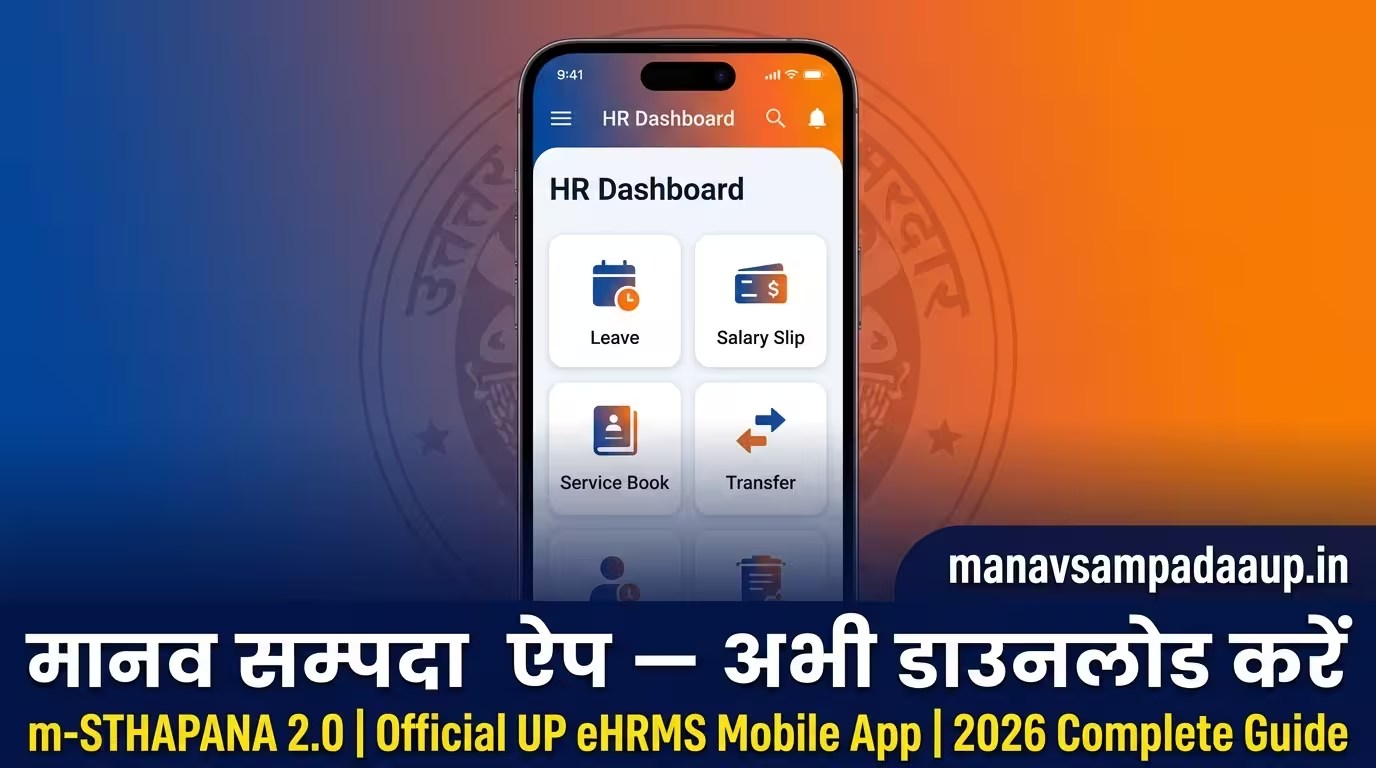
If you are a UP government employee still visiting your department office for leave approvals or salary slips, the m-STHAPANA app was built exactly to fix that. This is the official mobile version of the Manav Sampada UP eHRMS portal, developed by the National Informatics Centre (NIC) under the Digital India mission.
The 2.0 update is a major upgrade. It now runs on both Android and iOS, has a redesigned dashboard, biometric login, and a much faster connection to the main portal. This guide covers everything from safe download to first login to the features you will actually use every working day.
What Is m-STHAPANA 2.0 and Why Does It Matter?
The name stands for Mobile STHAPANA a direct pocket gateway to the Manav Sampada eHRMS portal at ehrms.upsdc.gov.in. The older version crashed frequently on newer Android phones and had no iOS support at all.
The 2.0 release changed that completely. It brought a rebuilt interface, fingerprint and face recognition login, iOS availability for the first time, and a working transfer module for EDUBASIC teachers. If you are managing HR tasks through a phone browser or the old app, upgrading takes five minutes and saves time every single day after that.
How to Download m-STHAPANA 2.0 Safely
This step matters more than most people realize. Dozens of fake and duplicate apps circulate on third-party websites, and they are built specifically to steal employee credentials.
Download from these two sources only:
Android: Open the Google Play Store and search for mSTHAPNA. Install the app listed under the developer name developer.basic.education. Current version is 3.9.2 or above.
iOS: Open the Apple App Store and search for mSTHAPNA. Install the official NIC-developed app. This is the first time the app is available for iPhone users.
Never download APK files from unofficial websites or WhatsApp-forwarded links. The UP government and NIC have officially warned employees against this. If any app asks for payment or requests sensitive personal details beyond your Employee ID and password, close it immediately it is not the real app.
How to Log In to m-STHAPANA 2.0 Step by Step
First-Time Login
Open the app after installation. Enter your official Employee ID on the login screen. In the password field, first-time users enter the default password: first 3 letters of your name in capitals + your birth year.
Example: Name is Ramesh, born in 1988 password is RAM1988.
After the first successful login, the app immediately asks you to set a new password. Do this right away. As per the 2025 security protocol, passwords must be changed every 90 days. The app sends a reminder 10 days before expiry.
Biometric Login
Once your account is set up, go to app settings and enable fingerprint or face recognition. This is new in 2.0 and was completely absent in the older version. It makes daily login faster and adds a proper security layer to your account.
Forgot Your Password?
Tap “Forgot Password” on the login screen. Enter your Employee ID and registered mobile number. An OTP will arrive on your official mobile number. Use it to reset access. If your mobile number has changed since registration, contact your department’s nodal officer first they will update it in the system before you can proceed.
Features You Will Use Every Day
Leave Application
Go to Leave Application inside the app. Select the leave type Casual, Medical, Earned, Maternity, or Study. Enter your dates, write the reason, upload any required document directly from your phone camera, and submit. You get a reference number instantly.
Track the real-time status of your application under “Application History” without calling anyone or visiting the office. For medical leave, a doctor’s certificate issued within 48 hours of applying is required and can be uploaded right from the app.
e-Service Book
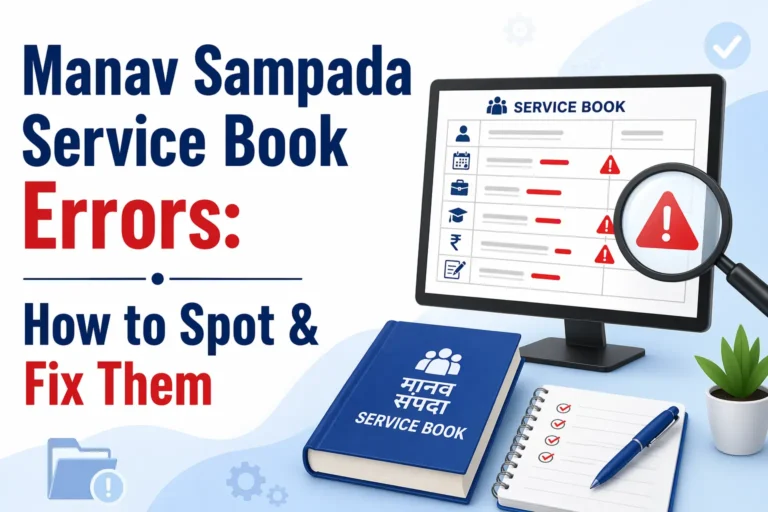
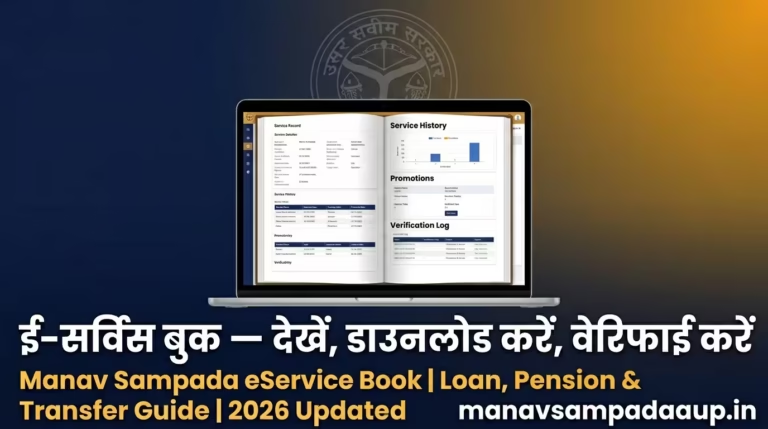
Your complete service record is accessible from the app posting history, personal details, qualification entries, and every change made to your HR file. If you have noticed any discrepancy or need to make a correction, the Manav Sampada Service Book Correction process starts here, directly from within the app.
Salary Slip and Pension Slip
Download your salary slip for any month as a PDF in seconds. No desktop, no waiting, no printing queue. Pensioners access their pension slips from the same section. This alone is why most employees install the app to begin with.
Attendance Management
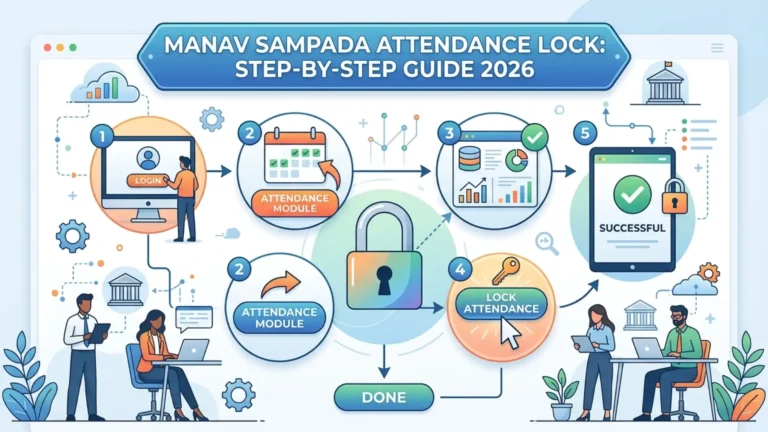
The attendance module shows your real-time attendance status and flags any discrepancies immediately. If you are dealing with attendance entries being locked or incorrectly marked, check the detailed guide on Manav Sampada Attendance Lock to understand the process and fix it fast.
Transfer Module
This is especially important for EDUBASIC teachers. Open the app, go to Dashboard, then Transfers, then Eligibility Dashboard. You can check eligibility, view available vacancies, submit preferences with grounds, and track the status live. The 2026 version also shows seniority points and the vacancy rationale information that was never visible in the older system.
ACR Submission
Officers can review and submit Annual Confidential Report entries directly from the app. No physical paperwork, no manual submission, and a full digital audit trail for every entry.
Which Departments Is This App For?
Every UP state government department is covered under the Manav Sampada eHRMS system. This includes Basic Education (EDUBASIC), Secondary Education, Medical and Health (MEDHLTH), Police and Home, Revenue, Rural Development, Public Works Department, Agriculture, Finance, and Social Welfare among many others.
If you are drawing a salary from the UP state treasury, this app is for you. Teachers, doctors, police personnel, administrative staff, and pensioners all covered.
Common Errors and Quick Fixes
Blank screen or app not loading: Your app version is outdated. Update from the Play Store or App Store. If the issue continues, clear the app cache from your phone settings and restart.
OTP not received: Your registered mobile number may be inactive or changed. Contact your nodal officer to update it in the system before attempting login again.
Credentials not accepted: Passwords are case-sensitive. Confirm your Employee ID is correct. Use the Forgot Password option if needed. Important government officials will never ask for your password or OTP. Any such message or call is a phishing attempt.
Frequently Asked Questions
Is m-STHAPANA 2.0 available for iPhone users?
Yes. The 2.0 version is the first time the app is available on the Apple App Store. iPhone users can now access all features leave application, salary slips, the transfer module, and more just like Android users.
Is downloading m-STHAPANA from a third-party site safe?
No, it is not safe. Only use the Google Play Store or Apple App Store. Third-party APK files often contain malware designed to steal your personal and financial information. This is an official government warning, not just a precaution.
Can pensioners use the m-STHAPANA app?
Yes. Retired UP government employees can fully use the app. Pension slips and related services are accessible from the same dashboard as serving employee services.
How do I know my leave was approved?
After submitting, you get a reference number. Check “Application History” in the app for real-time status updates. You will also receive a notification once the approving authority acts on your request.
What if I face a technical problem?
Contact your departmental nodal officer first. For portal-level technical issues, reach out to NIC support with your Employee ID and department name ready. Response is faster when you have these details on hand.
The m-STHAPANA 2.0 app puts your entire HR file in your pocket. Leave approvals, salary slips, service book access, transfer tracking things that used to take days now take minutes. Download it from the official store, complete your first login, and you will not need to visit your department office for routine HR tasks again.