Manav Sampada eService Book How to View, Download & Use for Loan, Pension & Transfer (2026)
Your eService Book on the Manav Sampada UP portal is the most important document in your government service career. It is the official digital record of everything your joining date, designations, promotions, pay revisions, transfers, leaves taken, and family details. Every major HR milestone you cross gets recorded here.
Banks use it. Pension departments use it. Transfer authorities use it. If this document has even one incorrect entry, it can delay a loan, hold up your pension, or block a promotion you rightfully earned. This 2026 guide covers exactly how to access it, download it as a PDF, verify it properly, and use it for the purposes that matter.
What the eService Book Actually Contains
Most employees know the eService Book exists but have never opened it carefully. The digital version maintained on the UP eHRMS portal covers 12 categories of service information, all organized in structured form.
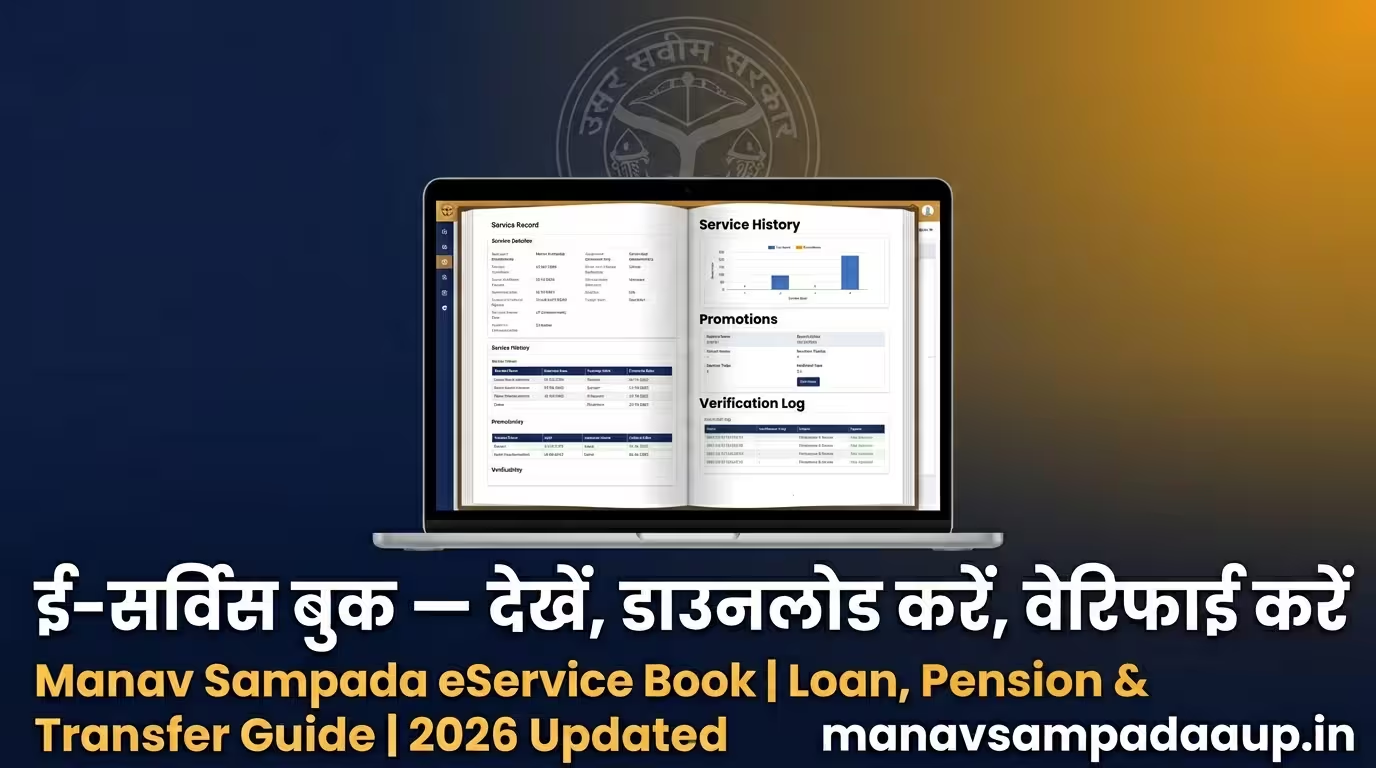
It includes your personal details, educational qualifications, family and nominee information, joining records, complete service history with all posting orders, pay scale revisions, increment records, all types of leaves taken and sanctioned, training attended, tour records, and any disciplinary entries. Promotions with the official order numbers are recorded in a dedicated section.
The 2026 version of the eService Book now includes a Verification Log. This is a new transparency feature that shows when your records were accessed and by whom. If any unauthorized access to your file occurs, you can see it directly in this log. It is an important security addition that was not available in earlier versions.
How to View Your eService Book on the Manav Sampada Portal
Log in to the official portal at ehrms.upsdc.gov.in using your Employee ID and password. If you have not logged in before, the default password format is the first three letters of your first name in capitals followed by your four-digit birth year. Change it immediately after your first login as the 2026 security mandate requires this.
After logging in, go to your dashboard and click on “Employee Services.” From the dropdown, select “eService Book” or “Employee Service Book Details.” The portal will ask you to enter your EHRMS code to confirm identity. Once verified, your complete service book opens on screen, organized by category sections.
Take a few minutes to go through each section carefully, not just the summary. Discrepancies are often found in pay scale entries, increment dates, or promotion order numbers details that look fine at a glance but cause serious problems later.
How to Download the eService Book as a PDF
Once your eService Book is open on screen, look for the “Download PDF” option at the top right of the page. Click it and the portal generates a password-protected PDF of your complete service record. Save it to your phone or computer in a folder you can find quickly.
The downloaded PDF is the official document you submit to banks, financial institutions, and administrative offices when required. Print it only when specifically asked for a hard copy most institutions in 2026 accept the digital PDF directly.
If the download fails or the PDF generates blank pages, clear your browser cache, switch to Google Chrome or Mozilla Firefox, and try again. The portal works best on desktop browsers. If you are using the m-STHAPANA 2.0 app, the service book is viewable from the app but PDF download is currently optimized for the web portal version.
How to Verify Your eService Book Section by Section
Viewing is not the same as verifying. Many employees open their service book, see their name on the top, and assume everything is correct. That assumption has caused real problems at retirement and during loan processing.
Check your date of birth and date of joining first these two fields affect pension calculation directly. Next, go through every promotion entry and confirm the order number matches the physical order you received. Pay scale entries should show the correct level as per the 7th Pay Commission revision. If you joined after 2016 and your pay scale still shows old grade pay, flag it to your HR officer immediately.
Check that all your major transfers are recorded with the correct joining dates at each station. A missing joining report entry can create a gap in your service record that looks like an absence. For leaves, verify that sanctioned leaves match what was actually approved discrepancies here affect your earned leave balance at retirement.
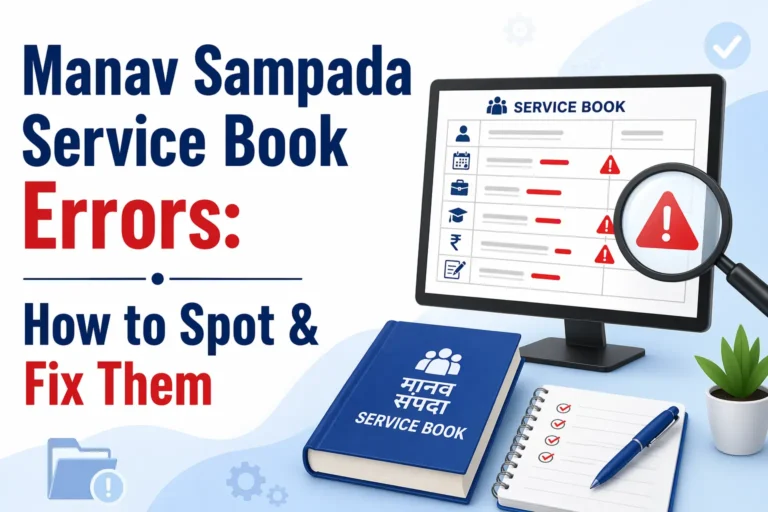
If your Manav Sampada Service Book Correction is needed, you cannot edit it yourself. Only authorized department officials can make changes. Submit a written request to your drawing and disbursing officer (DDO) or head of office with the supporting document promotion order, transfer letter, pay fixation statement and follow up until the correction appears in the portal.
Using the eService Book for a Home Loan
Kotak Mahindra Bank has integrated the Manav Sampada portal for instant employment and income verification for UP government employees applying for home loans. This means when you apply, the bank can verify your service details and salary history directly from the eHRMS system, reducing documentation delays significantly.
When a bank asks for your service book as part of loan processing, download the PDF from the portal and submit it. Your service book confirms your job permanency, current designation, salary level, and years of service exactly what lenders need to assess repayment capacity. Government employees with a clean, accurate service book get faster loan approvals because the data is verifiable at the source.
Before submitting for any loan application, check two specific entries: your current pay level (should reflect post-7th Pay Commission revision) and your date of confirmation as a permanent employee. Both affect the loan amount a bank will sanction.
Using the eService Book for Pension Processing
Your pension calculation at retirement is built entirely on your eService book data. The qualifying service period, the last pay drawn, the date of superannuation all of this comes from the eService Book. If any entry is wrong, your pension gets calculated incorrectly, and correcting it post-retirement is far more difficult than fixing it while you are still in service.
Start checking your service book at least three to four years before retirement, not one month before your last working day. Any correction involving a promotion order from 15 years ago will require the original file to be traced, which takes time. The earlier you catch it, the smoother your pension processing will be.
The portal also allows you to view nomination details for GPF and other savings schemes. Confirm that your nominees are correctly recorded and updated, especially after any family changes.
Using the eService Book for Transfer and Promotion
For transfer requests, the transfer eligibility module on the Manav Sampada portal pulls data directly from your eService Book. Your current posting duration, your service history at previous stations, and any special ground entries are all read from this record. If your joining date at your current posting is incorrectly entered, the system may show you as ineligible even when you qualify.
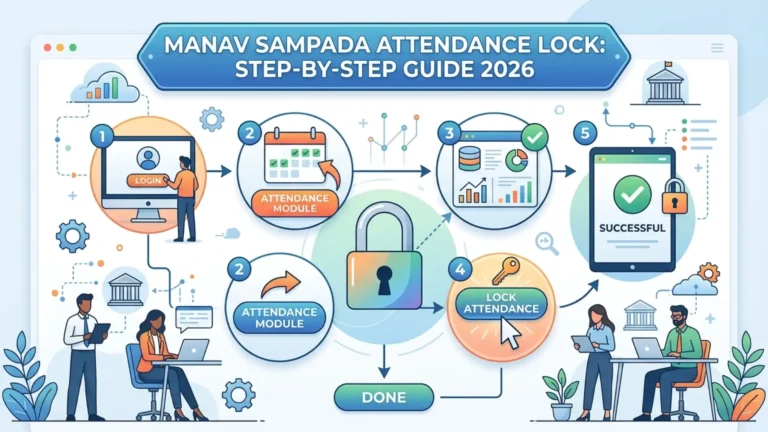
For promotions, the same applies. Your service duration in the current grade, ACR entries, and any departmental proceedings are all verified against the eService Book before a promotion order is processed. Check your attendance records as well the Manav Sampada Attendance Lock feature ensures attendance data feeds correctly into your service record.
Common Problems and How to Handle Them
The most reported issue is a mismatch between the physical service book maintained at the office and what appears on the portal. This usually happens because initial data entry was done manually by a department data entry operator and some entries were missed or entered incorrectly. The original physical record is the authority take it to your DDO and request a correction with a comparison sheet showing the discrepancy.
The second common issue is entries that exist in the system but without supporting order numbers attached. A promotion that shows the designation change but has no order number linked is incomplete and can be challenged. Get the original promotion order photocopied and submitted to your HR officer for proper linking.
If you cannot view your eService Book at all and the portal shows an error, check that you are selecting the correct department during login. Selecting the wrong department code is the most common reason the service book either does not load or shows another employee’s data.
Frequently Asked Questions
Is the downloaded eService Book PDF accepted as an official document?
Yes. The PDF downloaded from the Manav Sampada portal at ehrms.upsdc.gov.in is the official digital version of your service record. It is accepted by banks, government offices, and financial institutions for verification purposes.
Can I edit my eService Book myself?
No. Employees cannot directly edit any entry in the eService Book. Only authorized department officers with administrator access can make changes. You submit a correction request with supporting documents, and the officer makes the update after verification.
How often should I check my eService Book?
Check it at least once a year, and always before any major event a loan application, promotion process, transfer request, or pre-retirement verification. Annual checks help you catch discrepancies while they are still easy to fix.
What is the Verification Log in the 2026 eService Book?
The Verification Log is a new transparency feature added in 2026 that records every instance of access to your service book the date, time, and user who viewed the record. It gives employees visibility into who is accessing their data and ensures accountability at the department level.
What should I do if my service book shows missing promotion entries?
Collect the original promotion order issued by your department. Visit your drawing and disbursing officer with a written request for correction and attach a photocopy of the order. The DDO forwards the request to the nodal officer who has portal admin access to make the entry. Follow up every two weeks until the entry reflects correctly.
Your eService Book is not just a record it is the foundation on which your entire service career is verified. Loans get sanctioned faster, pensions get processed correctly, and transfers happen on time when this document is accurate and up to date. Log in to the Manav Sampada UP eHRMS portal, open your service book today, and verify it section by section. Fix any error now, while it is straightforward to do so.